
When I mentor others, the question I hear most is, “How do I actually start automating with PowerShell?”
The advice my mentees usually get from others lately is “Just go use AI.” This drives me crazy. Asking AI to write a script and then running it without knowing what it does is dangerous. I didn’t have AI when I was starting as a DBA, and I think relying on it too much makes us forget the fundamentals. We have to learn the basics first.
This is the hands-on approach I used to learn PowerShell. If you have never touched a terminal before, don’t worry. This is the version where we don’t break anything.
Prerequisites
- We are sticking to Windows to keep it simple.
- We are only using commands that start with Get. (No set, no remove, nothing else).
- I have seen people wipe out entire clusters with one bad command. Using “Get” is like running a SELECT statement in SQL. It just looks at data; it doesn’t change it.
- If you don’t have PowerShell yet, you can go install it here:
Step 1 Open the PowerShell ISE and find your tools
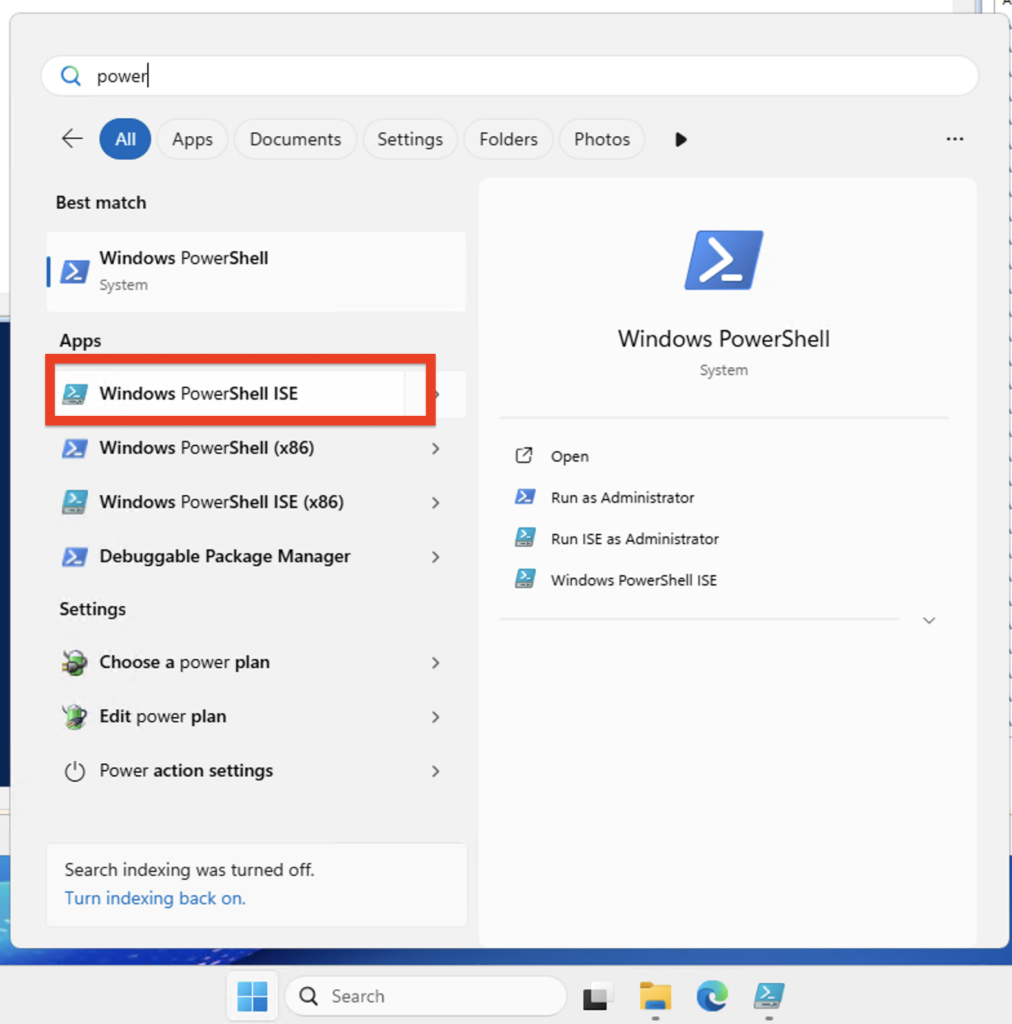
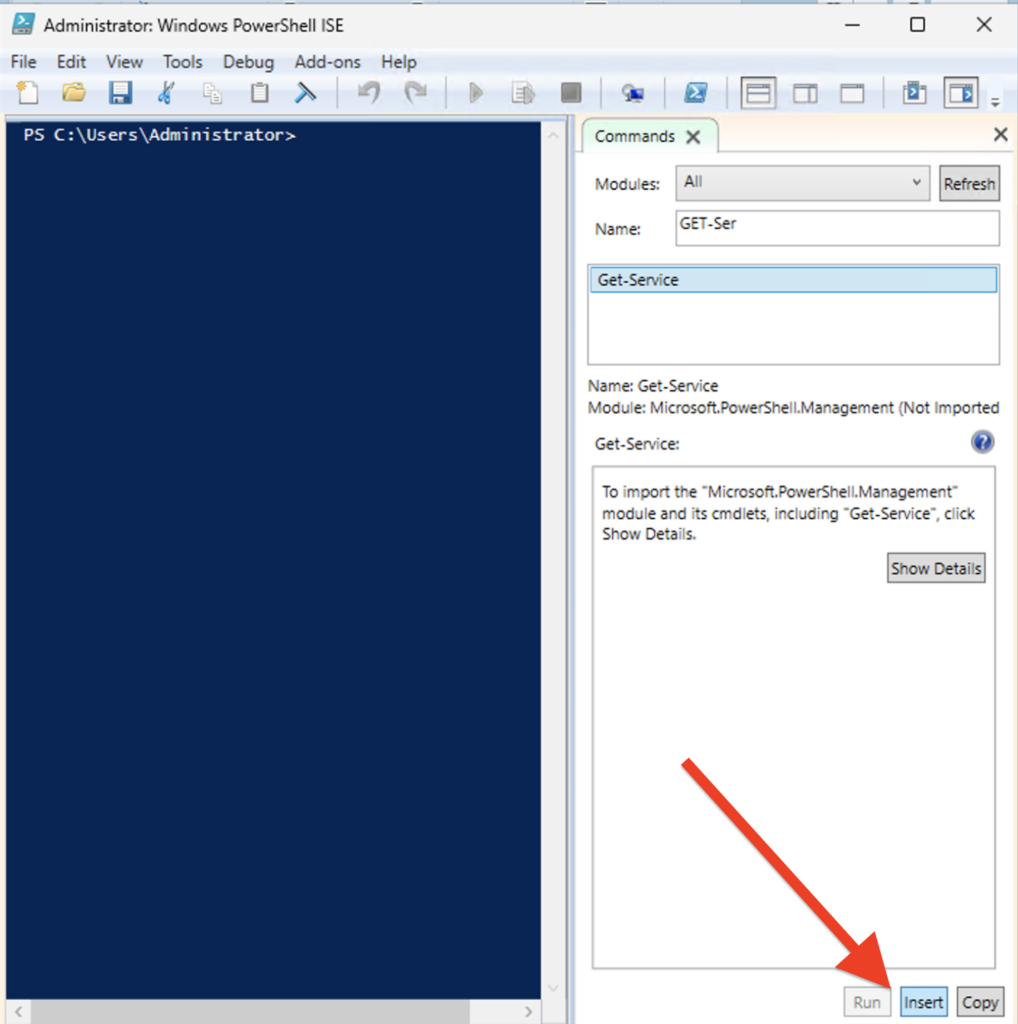
- Search your computer for PowerShell ISE. When it opens, you’ll see a big blue window.
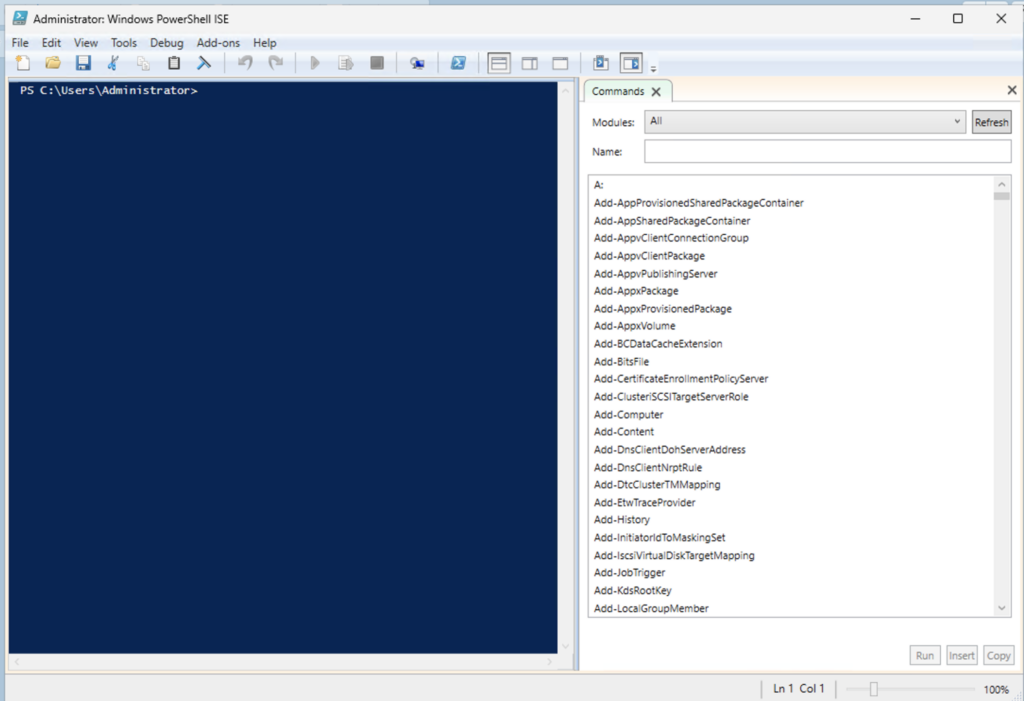
2. That’s your Command Add-on. It shows you everything you’re allowed to do.
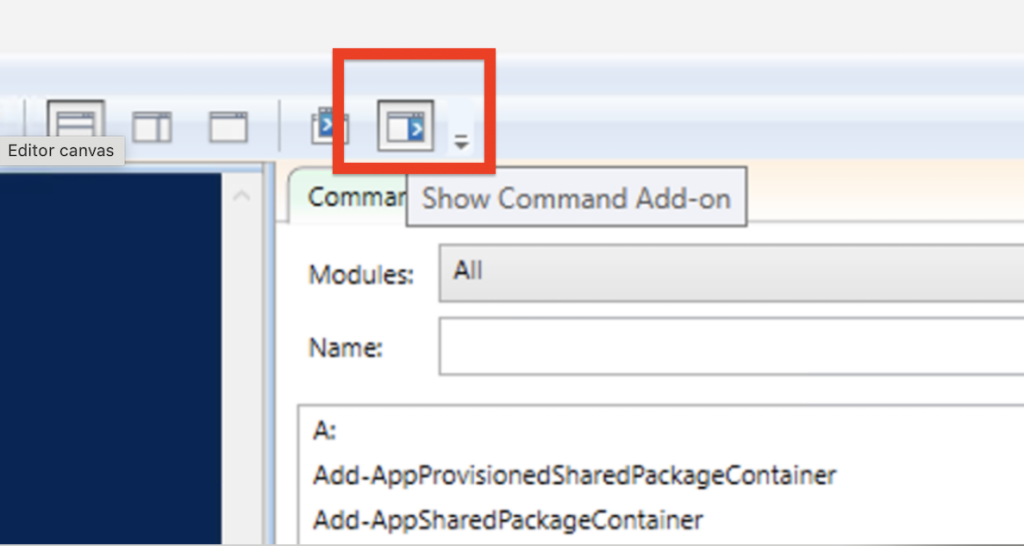
3. If you don’t see a list of commands on the right side, look at the top toolbar and click the button that looks like a little blue box with a list in it.
Step 2 Running your first command
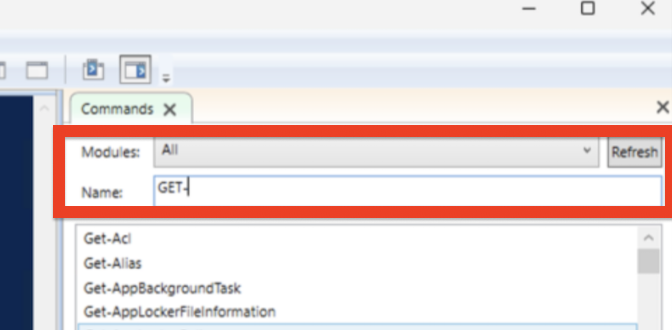
- In that command list on the right, type GET- in the search box. Scroll down until you see Get-Service. Click it.
2. Click the Insert button at the bottom, then hit Enter in the blue window.
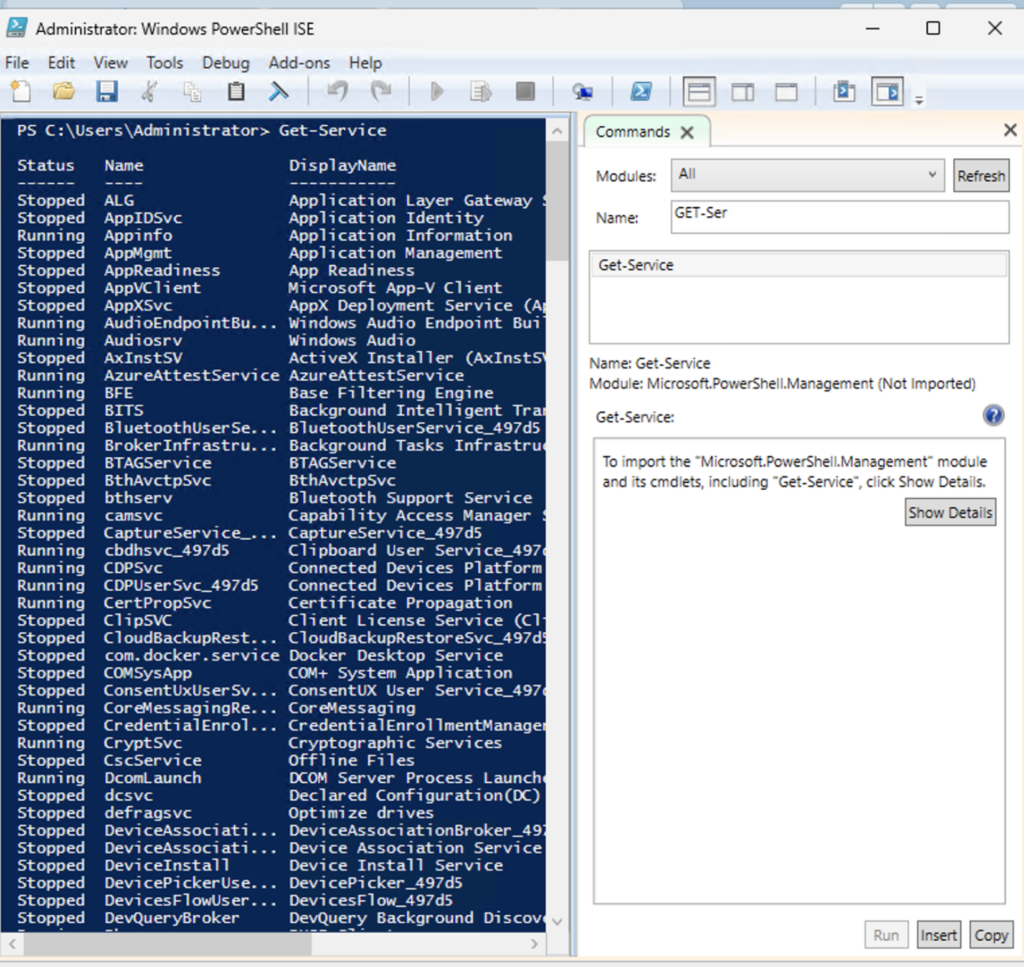
3. You’ll see a list of Services here that are running on Windows.
You are probably familiar with some like MSSQL which run SQL Server.
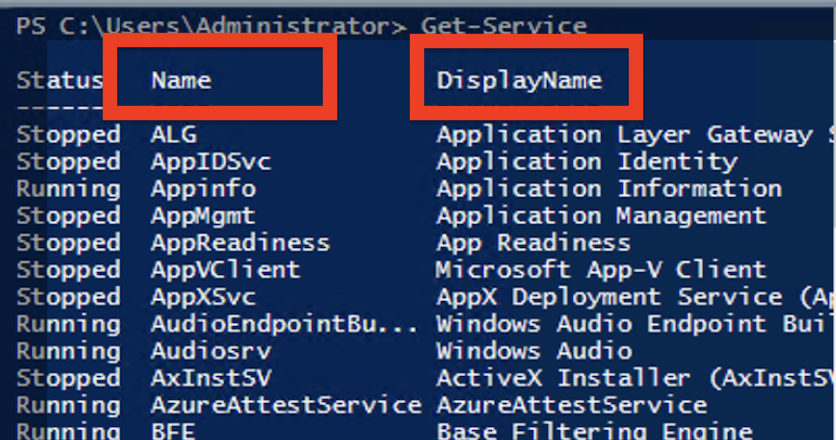
This is important. If you look on the left you’ll see “Name” and “Display Name.”
We can filter by these.
Step 3 Filtering
You don’t always want a massive list. Let’s find just one thing
- In that same right-hand menu, click Show Details.
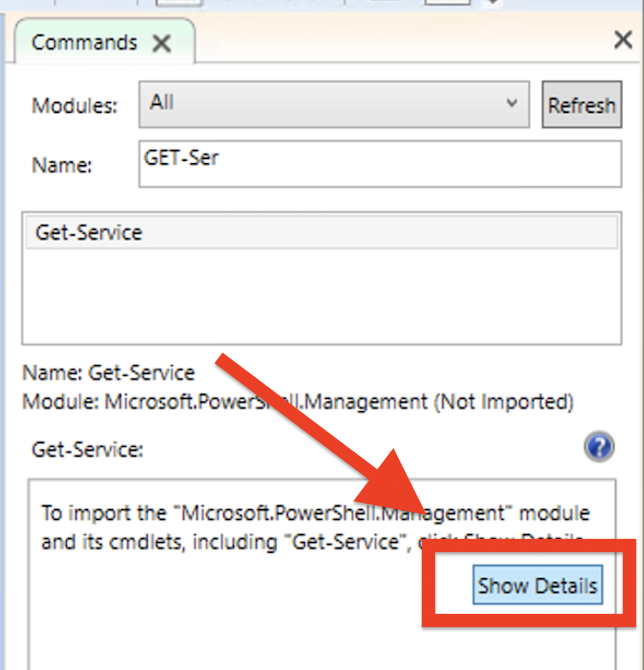
2. You’ll see a bunch of boxes. Look for the one labeled InputObject.
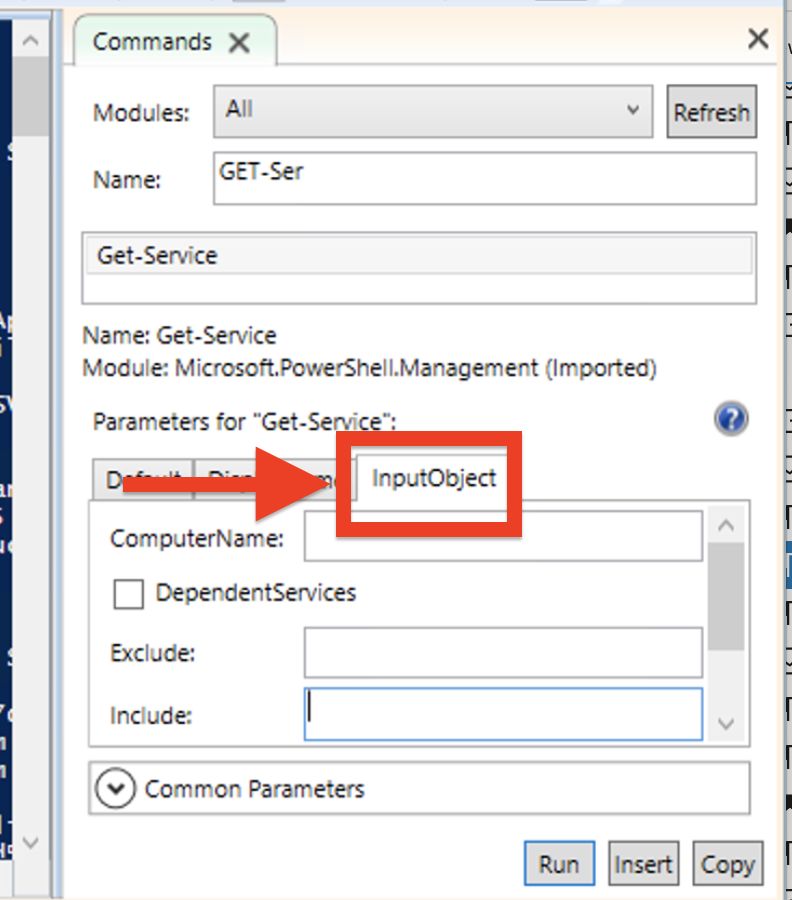
3. Put LocalHost in the ComputerName (This is just the laptop or server you are on).
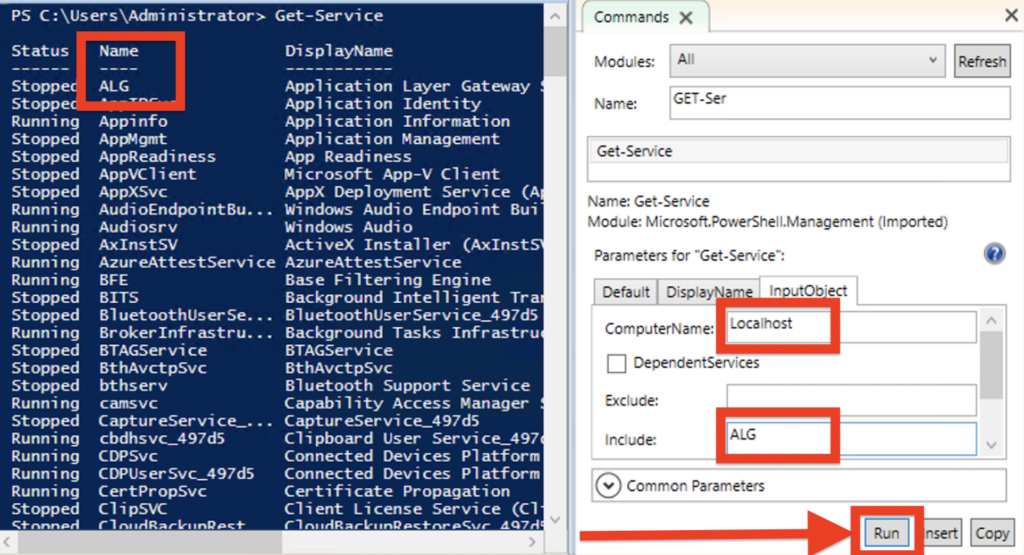
Now, instead of a hundred lines, you only see that one service. Easy.
You will notice that the parameters and values you passed through the UI are things you can write in code.

Step 4 Using Wildcards
Let’s find all your SQL stuff. Instead of typing the full name, we use a wildcard, which is just the asterisk symbol (*).
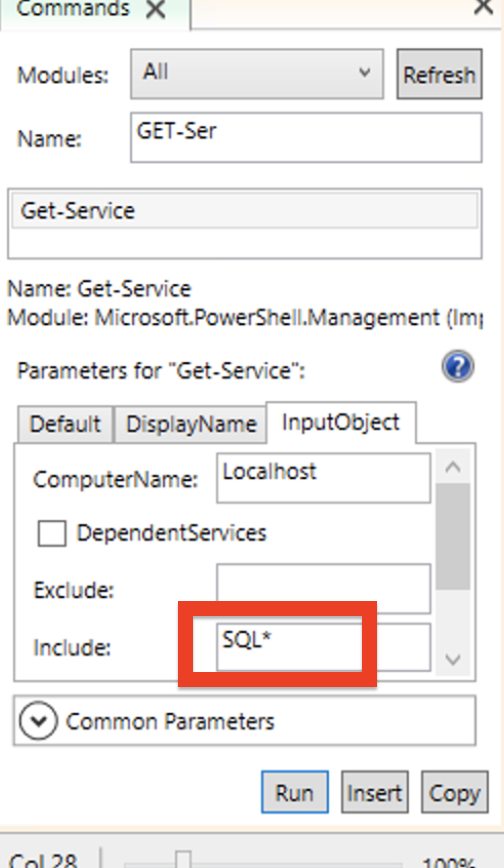
- Find the Include box in the sidebar again.
- Type SQL* and hit run.
3. Look at the blue window. It ran: Get-Service -ComputerName LocalHost -Include SQL*.
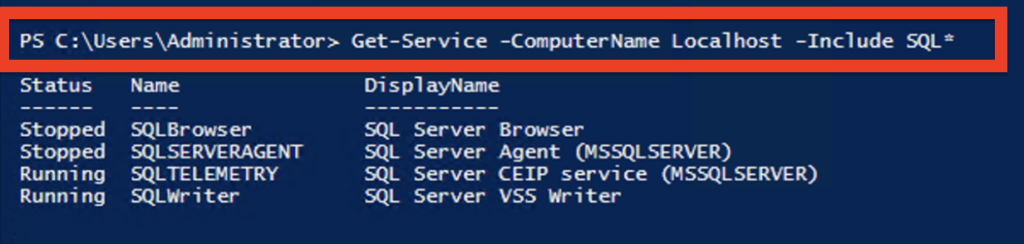
That asterisk tells PowerShell: “Find anything that has the letters SQL in it, I don’t care what’s before or after.”
Step 5 Use DBA Command To See Databases
If you want to feel like a pro, let’s look at your databases.
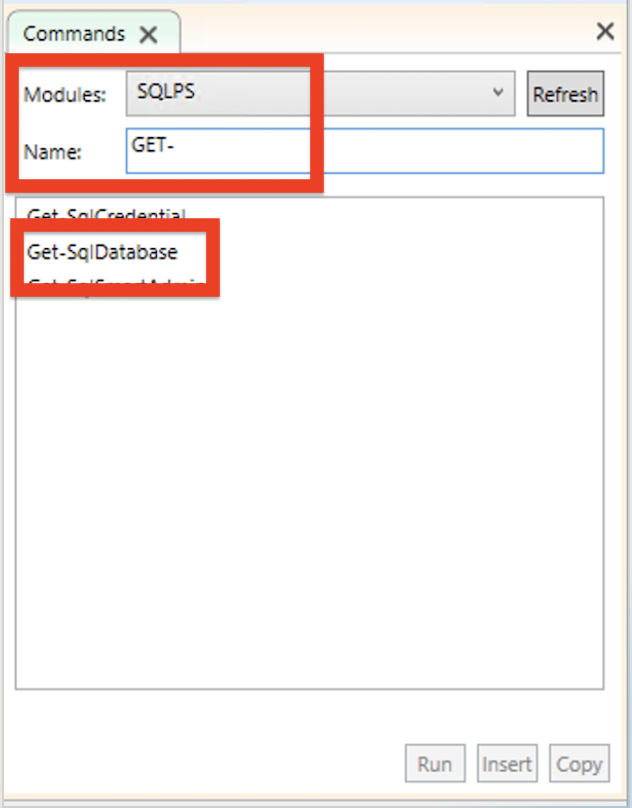
- Find under Modules SQLPS and Get- the Get-SqlDatabase
2. In the ByName box type in Locahost in the ServerInstance field.
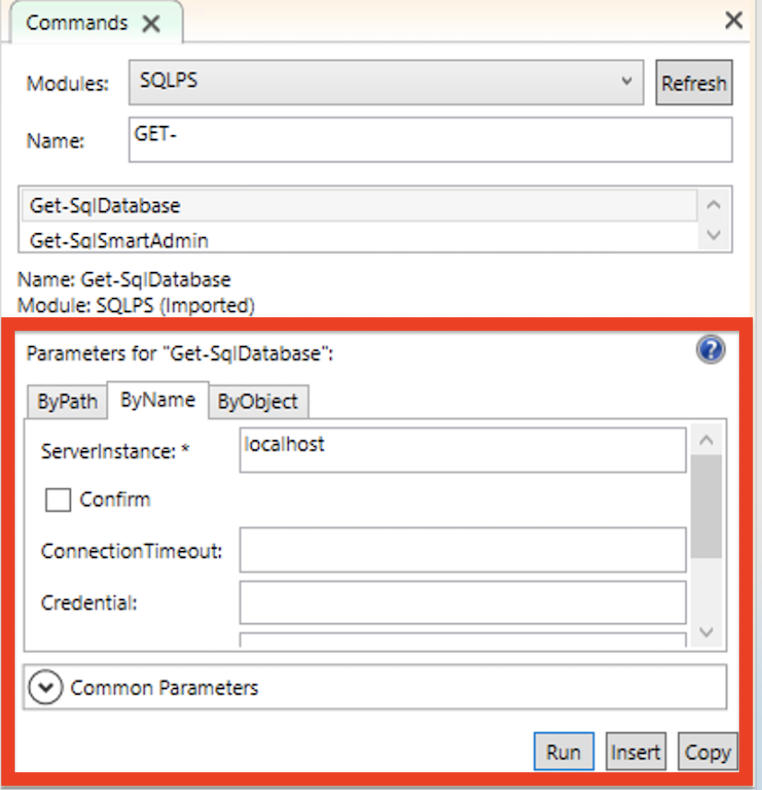
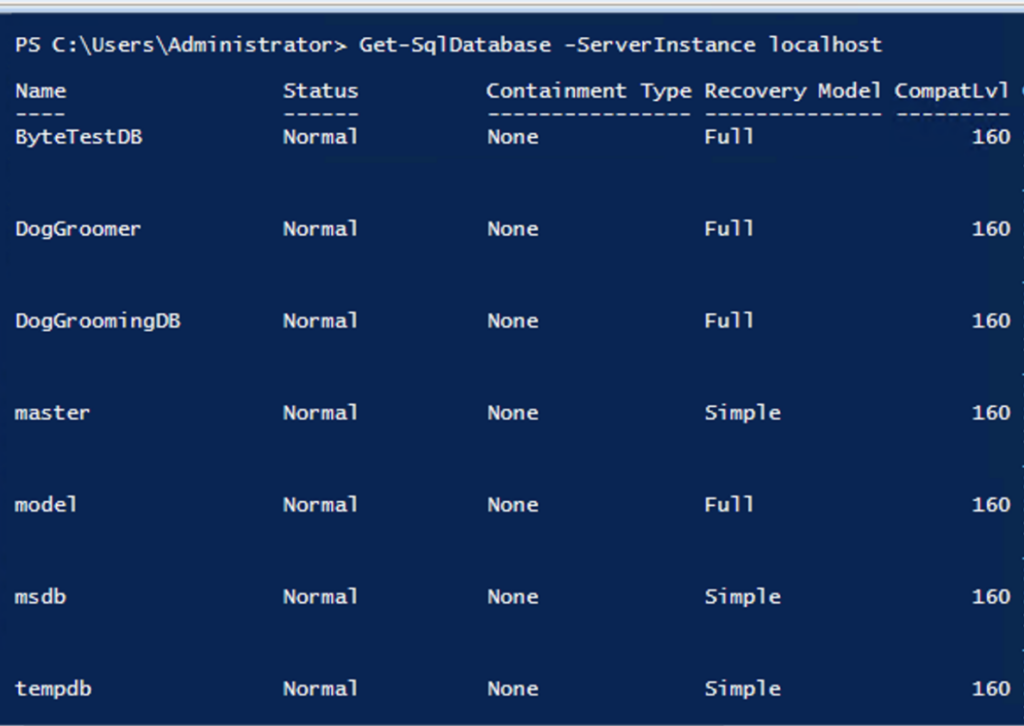
3. Hit run. You’ll see your database info there without ever opening Management Studio.
Step 6 Now try it without the buttons
Once you feel okay with the sidebar, try typing directly into the blue window.
- Type Get- and just stop. A little menu will pop up. You can use your arrow keys to find what you want.
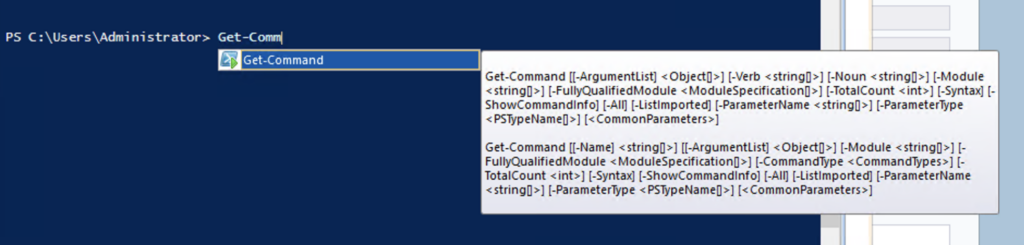
If you get stuck, type this to see everything available.
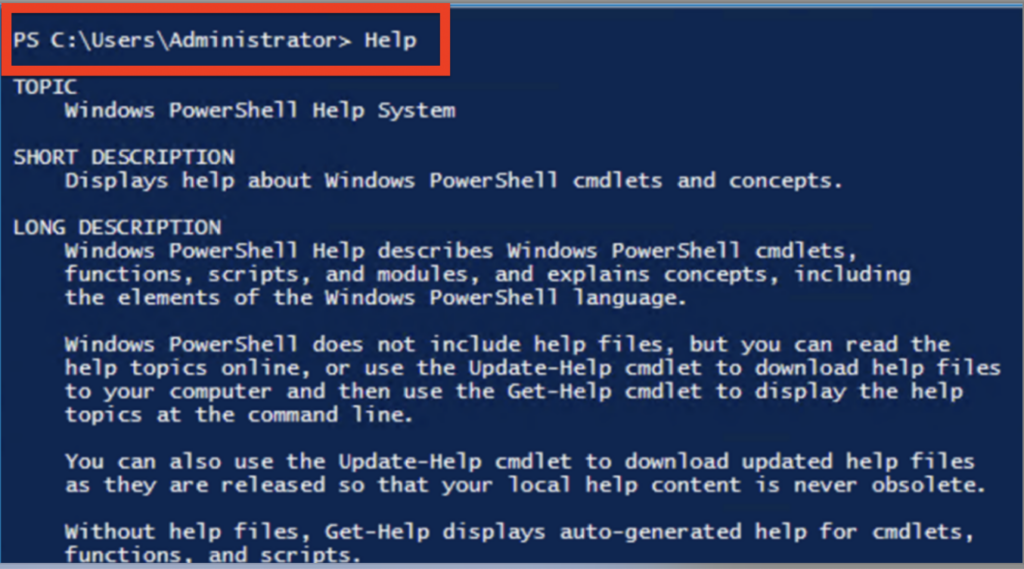
2. Type Help and you can get some information on the help command.
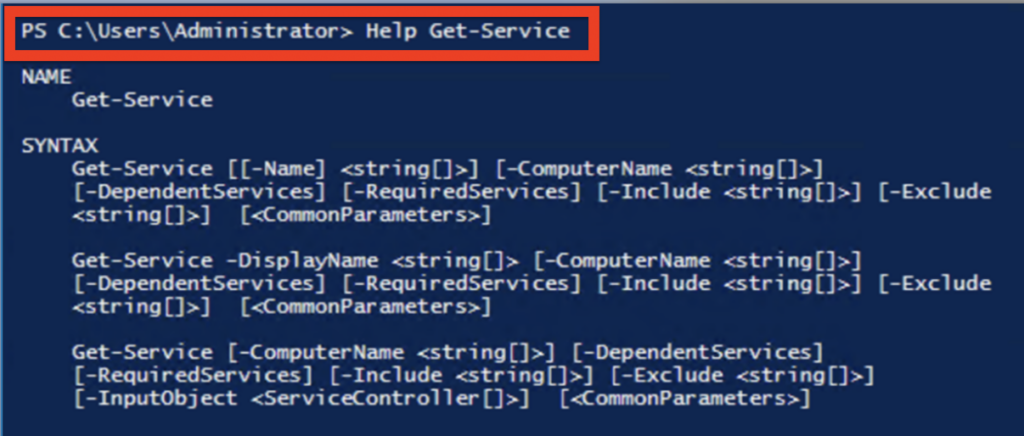
3. If you do Help followed by the command name like Get-Service. It’s like a built-in manual.
Just keep playing with the “Get” commands. Get out of your comfort zone and do some of your own scripting.
You will be surprised how fun PowerShell can be.
Other Resources
I am not going to try and re-invent the wheel on PowerShell because there are so many resources out there that are free.
I love this Microsoft page. It has so much great information. You can find how to install powershell on MAC with homebrew. The documentation is clean and easy to access: https://learn.microsoft.com/en-us/powershell/
If you are looking at learning PowerShell I would recommend the book Learn PowerShell in a Month of Lunches book or Learn PowerShell DBAtools in a Month of Lunches. It’s about 20-30 minutes a day to improve your skills.
People you can find with great training material on PowerShell:
- Ben Miller
- Rob Sewell
- Chrissy LeMaire
- Jess Pomfret
- Cláudio Silva
Most the time you can find free YouTube videos or even websites like DBAtools that are easy to learn from too.
Keep learning and go have fun with it.

Leave a Reply