
Welcome to the future of data. For a long time, databases were just digital filing cabinets. You put data in, and you took data out. But with SQL Server 2025, that changes. Your database is now an active participant in your workflow.
In this tutorial, we are going to build a “Dog Groomer” database that does not just store client info. It actually welcomes them. We will write a script that reads a new client from a table, asks Google’s Gemini AI to write a personalized email, and sends that email via SendGrid. Best of all, we will do it with SQL Server 2025 Management Studio.
I was having fun with new SQL Server 2025 on my local with my own accounts, so use this at your own risk.
Here is how to build it.
Prerequisites (This should be on SQL Server 2025)
Get Your Keys
Before we write code, we need to get access to our external tools. Think of these as the keys to the castle.
1. Get a Google AI (Gemini) Key
We need a brain for this operation. You can use OpenAI or anything else, I just ran out of credits so I decided to use Gemini since I am getting it free with school.
- Go to Google AI Studio.
- Sign in with your Google account.
- Click Get API Key in the top left sidebar.
- Click Create API Key.
- Copy that string. It usually starts with AIzaSy.
2. Get a SendGrid API Key
We also need a delivery service. Sending email directly from a server is a bad idea because it usually ends up in the spam folder, so we will use an API to ensure it gets delivered.
- Sign up for a free account at SendGrid.com.
- Go to Settings then API Keys.
- Click Create API Key and give it “Full Access” for now to keep things simple.
- Important: You have to verify a “Sender Identity” first. Go to Settings then Sender Authentication and verify the email address you plan to send from or SendGrid will block you.
Step 4: Build the “Groomer” Database
Let’s set the stage. Imagine we run a high-end dog salon. We need a place to store our VIP clients. Open Azure Data Studio or SSMS and run this SQL to build our foundation.
CREATE DATABASE GroomerDB;
GO

USE GroomerDB;
GO

-- Create the Owners Table

CREATE TABLE Owners (
OwnerID INT IDENTITY(1,1) PRIMARY KEY,
FullName VARCHAR(100),
Email VARCHAR(100)
);

-- Create the Pets Table
CREATE TABLE Pets (
PetID INT IDENTITY(1,1) PRIMARY KEY,
OwnerID INT,
DogName VARCHAR(50),
Breed VARCHAR(50),
FOREIGN KEY (OwnerID) REFERENCES Owners(OwnerID)
);

-- Add our VIP Client
INSERT INTO Owners (FullName, Email) VALUES ('Sarah Connor', 'sarah@skynet.net');

INSERT INTO Pets (OwnerID, DogName, Breed) VALUES (1, 'Terminator', 'German Shepherd');
Step 5: Enable External Access
This is the cool feature of SQL Server 2025. We can use the command sp_invoke_external_rest_endpoint to call APIs directly from the database engine. By default, this is turned off for security.
Turn it on by running this command.
EXEC sp_configure 'external rest endpoint enabled', 1;

RECONFIGURE;
GO
Step 6: SQL to AI to SendGrid
Now for the big finish. We are going to write a script that does three things. First, it finds Sarah Connor’s data. Second, it asks Gemini to write a polite welcome email. Third, it formats that response and sends it through SendGrid.
Copy this script, but make sure to fill in your 3 placeholders at the top!
--AI Automation
--Sending Email
--Using SendGrid

USE GroomerDB;
GO

-- 1. CONFIGURATION
DECLARE @GeminiKey VARCHAR(500)   = 'AIzaSy...PASTE_YOUR_GOOGLE_KEY_HERE';
DECLARE @SendGridKey VARCHAR(500) = 'Bearer SG...PASTE_YOUR_SENDGRID_KEY_HERE';
DECLARE @FromEmail VARCHAR(100)   = 'YOUR_VERIFIED_SENDGRID_SENDER_EMAIL';
DECLARE @ToEmail VARCHAR(100)     = 'YOUR_REAL_EMAIL_FOR_TESTING';

-- 2. GET DATA
DECLARE @Owner VARCHAR(100);
DECLARE @Dog VARCHAR(50);

SELECT TOP 1 @Owner = FullName, @Dog = DogName
FROM Pets
JOIN Owners ON Pets.OwnerID = Owners.OwnerID;

-- 3. ASK GEMINI
--TO WRITE THE EMAIL
DECLARE @Prompt VARCHAR(MAX) = CONCAT('Write a very short, excited email to ', @Owner, ' welcoming their dog ', @Dog, ' to the salon.');
DECLARE @GeminiUrl VARCHAR(MAX) = CONCAT('https://generativelanguage.googleapis.com/v1beta/models/gemini-flash-latest:generateContent?key=', @GeminiKey);

DECLARE @AiResponse VARCHAR(MAX);
DECLARE @GeminiPayload VARCHAR(MAX);

-- Build safe JSON for Google

SET @GeminiPayload = CONCAT('{"contents": [{"parts": [{"text": "', STRING_ESCAPE(@Prompt, 'json'), '"}]}]}');

EXEC sp_invoke_external_rest_endpoint
    @url = @GeminiUrl,
    @method = 'POST',
    @headers = '{"Content-Type": "application/json"}',
    @payload = @GeminiPayload,
    @response = @AiResponse OUTPUT;

-- 4. PARSE AI RESULT
--SEND VIA SENDGRID

DECLARE @EmailBody VARCHAR(MAX);
-- Extract the text from Gemini's JSON response
SELECT @EmailBody = JSON_VALUE(@AiResponse, '$.result.candidates[0].content.parts[0].text');

IF @EmailBody IS NOT NULL
BEGIN
    DECLARE @SendGridPayload VARCHAR(MAX);
    DECLARE @EmailResponse VARCHAR(MAX);
    -- Build SendGrid JSON Packet
    -- SendGrid creates a nested structure with "personalizations" and "content"
    SET @SendGridPayload = CONCAT(
        '{',
        '"personalizations": [{"to": [{"email": "', @ToEmail, '"}]}],',
        '"from": {"email": "', @FromEmail, '"},',
        '"subject": "Welcome ', @Dog, '!",',
        '"content": [{"type": "text/plain", "value": "', STRING_ESCAPE(@EmailBody, 'json'), '"}]',
        '}'
    );
    -- Call SendGrid API
    EXEC sp_invoke_external_rest_endpoint
       @url = 'https://api.sendgrid.com/v3/mail/send',
        @method = 'POST',
        @headers = CONCAT('{"Content-Type":"application/json", "Authorization":"', @SendGridKey, '"}'),
        @payload = @SendGridPayload,
        @response = @EmailResponse OUTPUT;

    -- SendGrid returns a success code with no text body if it works.
    SELECT 'Email Request Sent to SendGrid!' AS Status;
END
ELSE
BEGIN
    SELECT 'Error: AI did not return a valid body.' AS Status, @AiResponse AS DebugInfo;
END
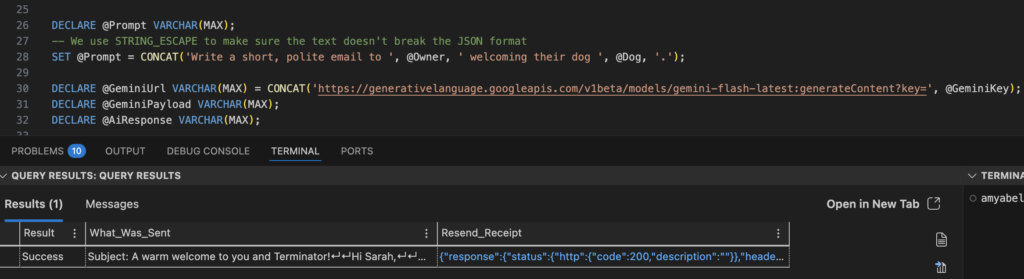
It will also return the results of the response on the query results section
What just happened?
If you noticed, the JSON structure for SendGrid is a little different from other providers. Gemini expects a contents array, while SendGrid expects a personalizations array.
Because we are working in SQL, we use CONCAT and STRING_ESCAPE to manually build these JSON strings. It looks a bit messy, but it is necessary to make sure the data arrives safely.
Check your email
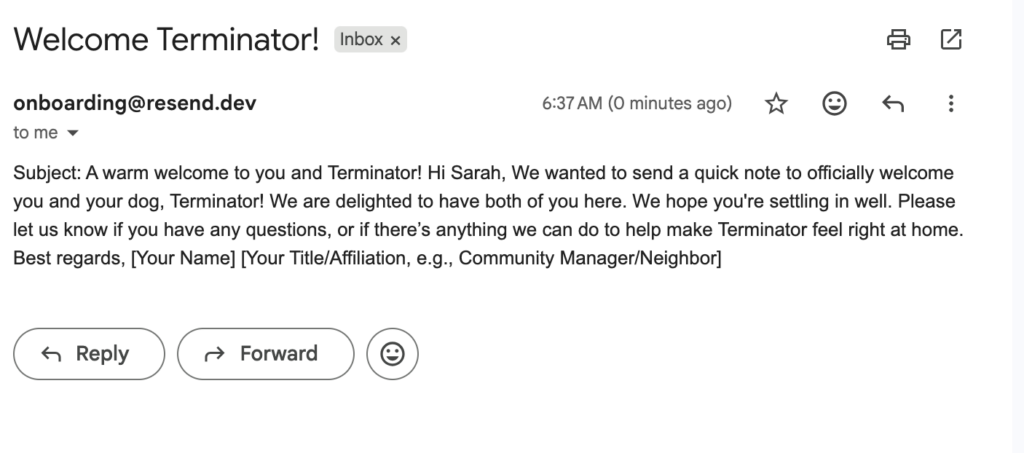
If you hit Run, take a look at your phone. You just received an email written by Google and sent by SendGrid, but it was orchestrated entirely by a SQL Server database.
A few things I would be cautious of and change in this if it was the real world:
- I would store the email in the table and call that parameter instead of hard coding, this was just a test.
- Store the API keys in the vault and call them from the key vault.
- API keys should never be called plain text in a proc.
- Never pull data directly from PROD and connect to the internet or AI that is not securely vetted or isolated.
- Don’t store PHI or HIPPA data in the same database sending the calls to email.
- This could be a HUGE liability and risk your career.
What do you think about this feature
Honestly, this kind of tech blows my mind. I can see how this would be useful for a businesses because that expensive “middleman” is finally gone. I know that it’s not as “easy” and will require proper security to be vetted but I am thinking about small business owns who are maybe just massage therapists or paint houses. It could send out an email to remind people about appointments.
But I have to admit, it scares me a little too. We are handing a lot of power over to the machine here. If we aren’t careful, we could accidentally leak data or let an AI send thousands of weird, hallucinated emails in a loop. We are moving toward a world where data works for you, which is amazing, but it is also heavy. Use this power to build cool things, but maybe keep a human in the loop until you know for sure you can trust it.
Leave a Reply